 Empty Basket
Getting Started
Signing in, the starter pantry, and finding your way around.
Signing in
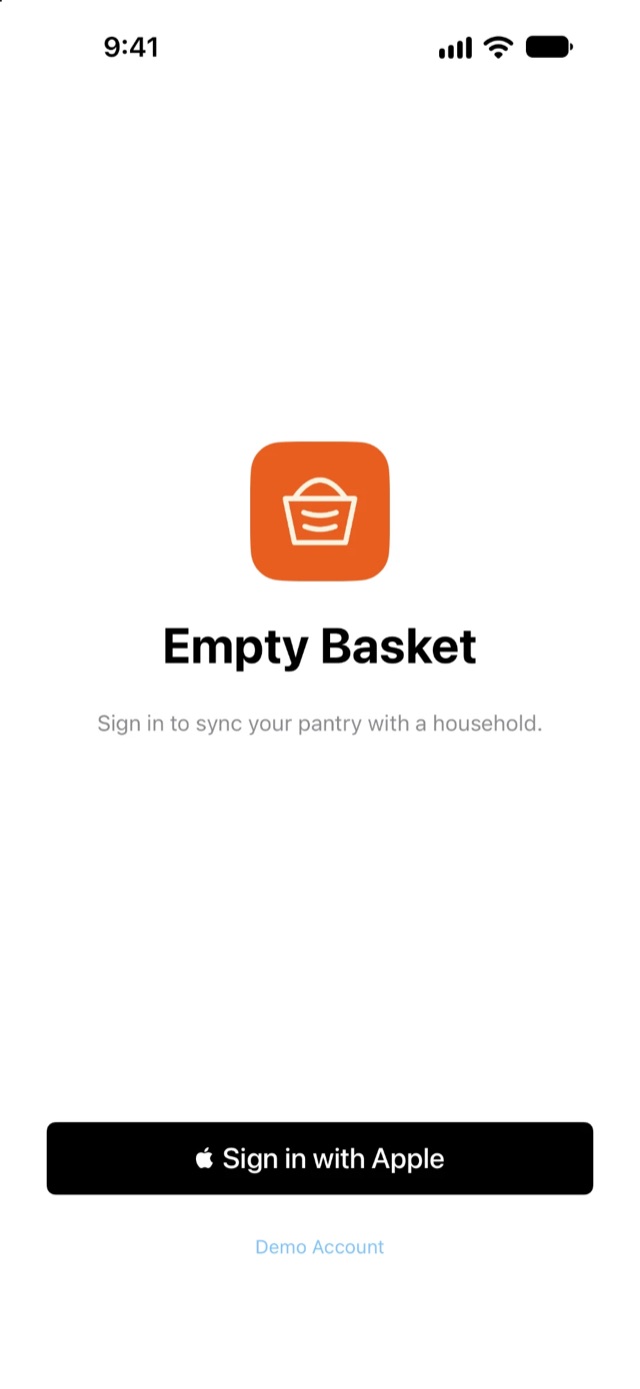
Tap Sign in with Apple. A private relay email is fine; Empty Basket never needs your real address. Your account is what keeps your pantry in sync across your devices and with anyone you share it with.
The first time you sign in, iOS asks whether Empty Basket may send notifications. You can change your mind later in iPhone Settings, and choose exactly which kinds you get in the app's own Settings.
The starter pantry
On first launch, with an empty pantry, Empty Basket asks Start with a Pre-Built Pantry?
- Yes, Import Items adds about 170 common household items, sorted into categories and all marked in stock. Delete what you don't buy and add what's missing.
- Start Empty gives you a blank pantry to build yourself.
Either way, nothing is final. The same starter items are available later under Settings → Household → Import Pre-Built Pantry, and anything already in your pantry won't be duplicated.
The pantry fills in naturally as you shop. A rough start that you tidy over a week or two works better than an afternoon of data entry.
Finding your way around
The bar at the bottom has the four main tabs: Pantry, Meals, Plan and Shopping. Just above it sits each screen's own set of tabs, such as All · Have · Need in the pantry. The round button on the right opens Search.
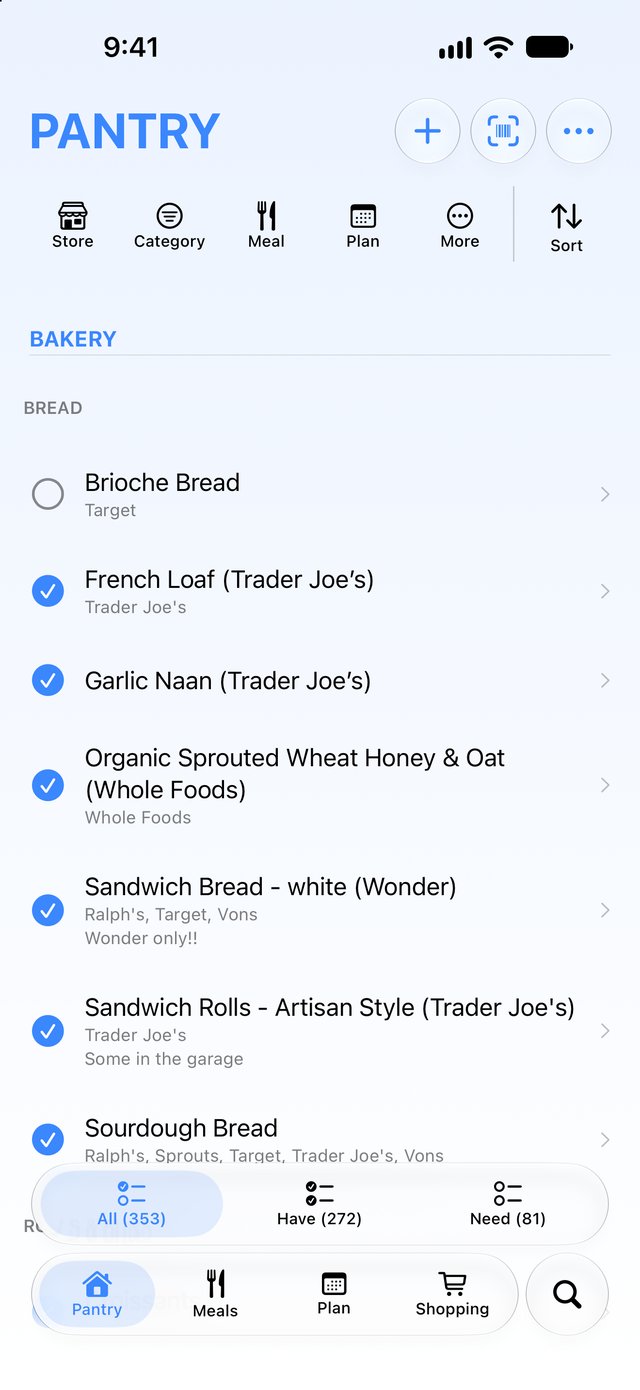
At the top of every screen:
- + adds something new to that screen.
- The Scan button (a barcode), on the Pantry and inside a shopping list, opens the camera to add, restock or check off items. See Scanning items.
- ⋯ has that screen's extra actions, and Settings.
- A row of buttons for filtering and sorting (see Filters and sorting below).
You can choose which screen the app opens to in Settings → Defaults → Home Screen.
Filters and sorting
Every list uses the same controls.
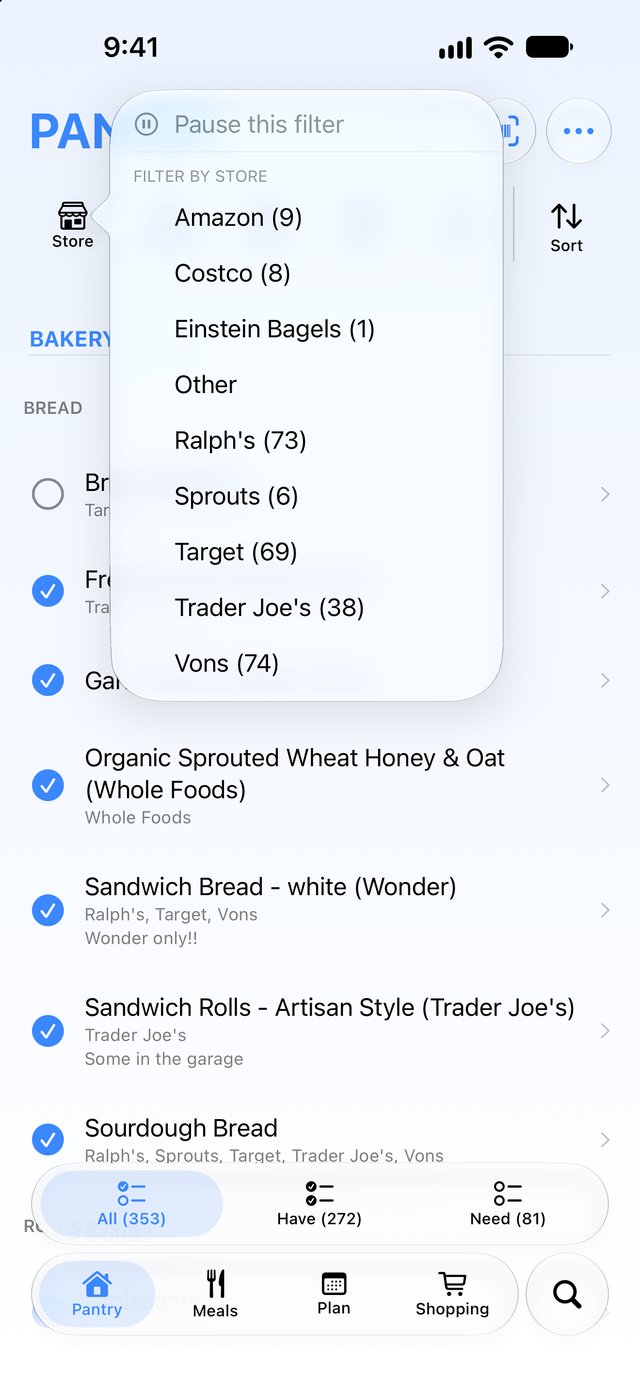
- Filter buttons (Store, Category, Meal and so on) open a short list. Tick as many values as you like; the list stays open until you tap outside it. None finds items with no value set, such as items with no store.
- Pause this filter, at the top of each list, sets a filter aside without forgetting what you picked. Tap it again to bring it back. Clear All, at the bottom, empties it.
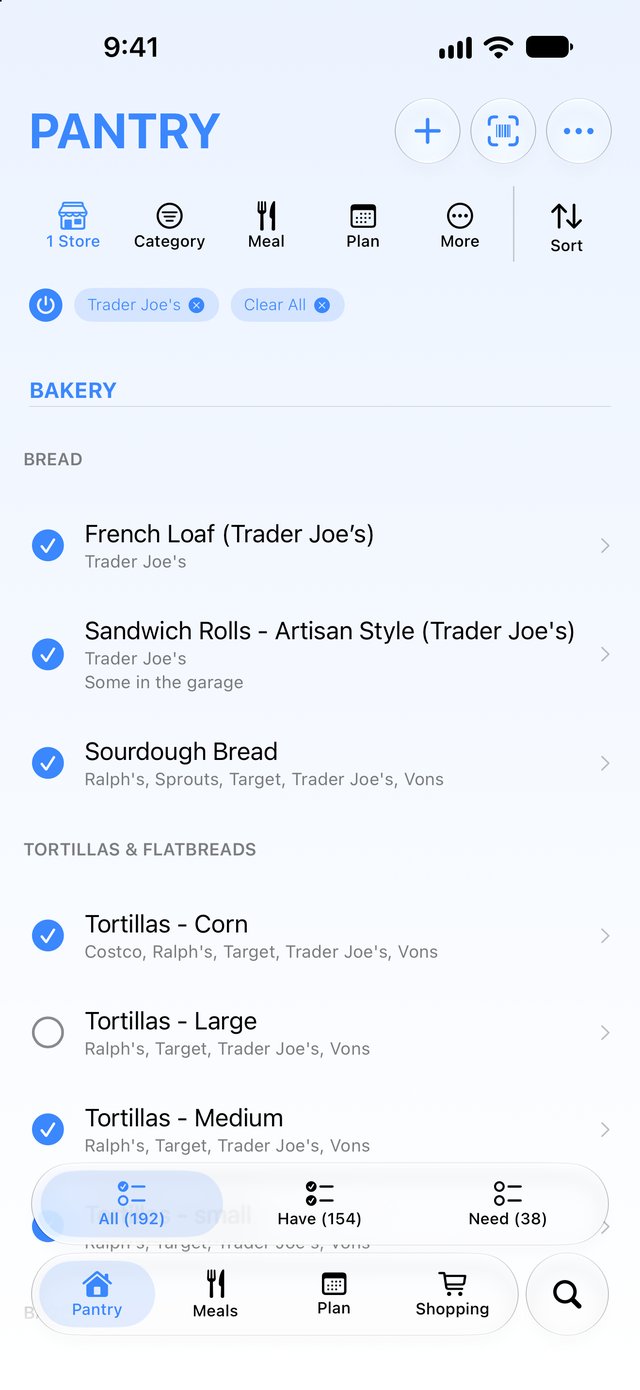
- Chips below the buttons show every filter that's on. Tap a chip's × to remove that filter, or the last chip, Clear All, to remove them all.
- The power button at the start of the chip row switches every filter on that screen off and back on, keeping your choices. Search keeps working either way.
- Sort: press and hold to choose a sort. Once you've picked one, a single tap switches between it and the default.
Searching
Tap the round Search button and type. Search looks through everything on that screen, ignoring your filters and the tabs, and puts them all back when you tap Cancel Search.
Working offline
Empty Basket works without a connection. Changes are kept on your phone and sent when you're back online. If something looks out of date, pull down on any list to refresh it.