 Empty Basket
The Pantry
Keeping track of what you have, what you're out of, and where you buy it.
How it works
The pantry is a list of everything you might want to buy, whether you have it right now or not. Each item is either in stock or out. Your shopping lists are built from the items that are out, so the pantry is the one thing worth keeping up to date. Everything else follows from it.
Items are grouped by category (Produce, Dairy, Pantry Staples), then by sub-category if you use them. Anything marked urgent is pinned in its own section at the top.
Marking things in and out
Tap the circle next to an item to switch it between in stock and out of stock. That's most of the upkeep, done when you notice you're running low.
The tabs at the bottom narrow the list: All, Have (in stock) and Need (out of stock). The counts in each tab follow whatever filters you have on.
Each row can show these marks:
- Red exclamation mark, red name: urgent.
- Star: essential.
- Hourglass, orange name: you haven't bought it in a while (see Overdue items).
Adding an item
Tap + → New Pantry Item.
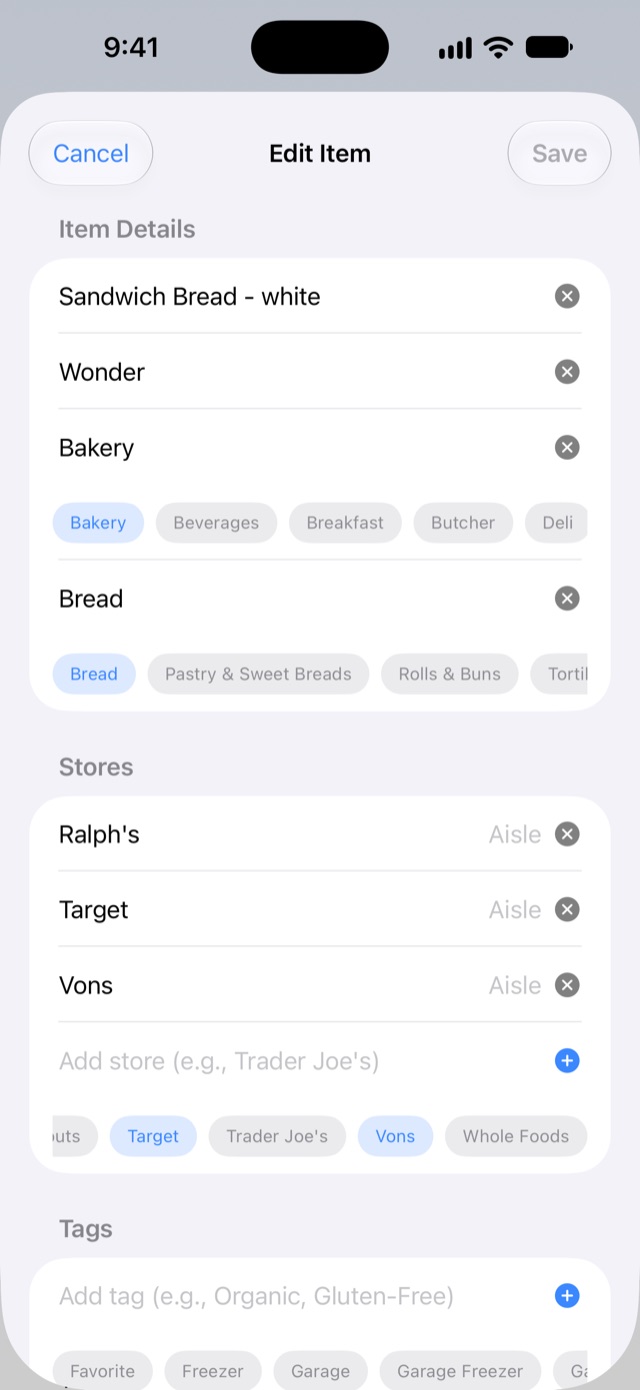
- Name and Category are required. Everything else is optional.
- As you type a name, Similar Items shows anything close that's already in your pantry. Tap one to open it instead of making a duplicate.
- Category and Sub-Category each have a row of buttons with categories you've used, plus a starter set. Tap one to fill it in.
- On iPhones with Apple Intelligence, Empty Basket offers a category once you pause typing. Tap ✓ to use it or × to ignore it.
- Stores: add each store that carries the item. Each store has an Aisle field. It's optional, but it lets shopping lists come out in the order you walk the store.
- Tags are your own labels, such as Organic or Gluten-Free. Favorite is always offered.
- Notes appear under the item's name in the list.
When you tap Save, Empty Basket checks for an item with the same words in its name and brand. If it finds one, it tells you where it is and asks whether to Add Anyway.
Scanning items
Tap the Scan button (the barcode, next to +) to add or update things with the camera instead of typing.
- Point at a barcode. It's caught the moment it's in view and looked up on Open Food Facts, an open product database. Only the barcode number leaves your phone.
- Or take a photo of the label, or of the item itself for things like a head of lettuce or a bunch of bananas. The photo is read on your iPhone and never uploaded.
If it's already in your pantry, you can Mark Out of Stock (or Mark In Stock), Mark Urgent, Add to List or Open Item. Scanning the empty box is the quickest way to keep the pantry up to date.
If it's new, you'll see what was found. Tap Add to Pantry, or Add as Out of Stock to put it straight onto the next shopping list. Either way the item form opens filled in for you to check; add its stores and anything else, then Save.
If it looks like something you already have, it asks Which pantry item is this? and shows the closest matches. Tap the right one, or Search Pantry… to find it yourself, or Add as New. This is how one pantry item can cover many products: link the store-brand blueberries and the organic ones to the same Blueberries, or keep a particular coffee as its own item. If a scan picks the wrong item, tap Not this item; if it shows a new item you actually have, tap It's in My Pantry….
Each item remembers every barcode linked to it, so you only link a product once and the next scan finds it instantly. The camera stays open after each scan, so you can work through a whole grocery haul; tap Done when you're finished.
If a barcode isn't in the database, take a photo of the front of the package instead. Results are most accurate on iPhones with Apple Intelligence.
Urgent and essential
- Urgent is for things you need on the very next trip. Marking an item urgent also marks it out of stock and tells the rest of your household. Marking it back in stock clears it.
- Essential is for things that belong on every list, such as milk or bread. Essentials go on every shopping list for their store, even when they're in stock.
Set either one by pressing and holding an item, or from its detail page.
Swipes and the press-and-hold menu
- Swipe right for Add to List (puts the item on a shopping list for its store) or Duplicate (copies it into a new item for you to adjust).
- Swipe left for Delete, which asks before deleting anything.
- Press and hold for the same actions, plus in stock or out, urgent and essential.
When you add an item to a list, Empty Basket picks the right one. If it has one unfinished list for that store, the item goes there. If it finds several, it asks which. If it finds none, it offers to start one.
An item's detail page
Tap an item's name to see everything about it: stores and aisles, tags, notes, the meals that use it, and its Purchase History, newest first. The bottom of the page shows who added it, who changed it last, and who last marked it out or urgent.
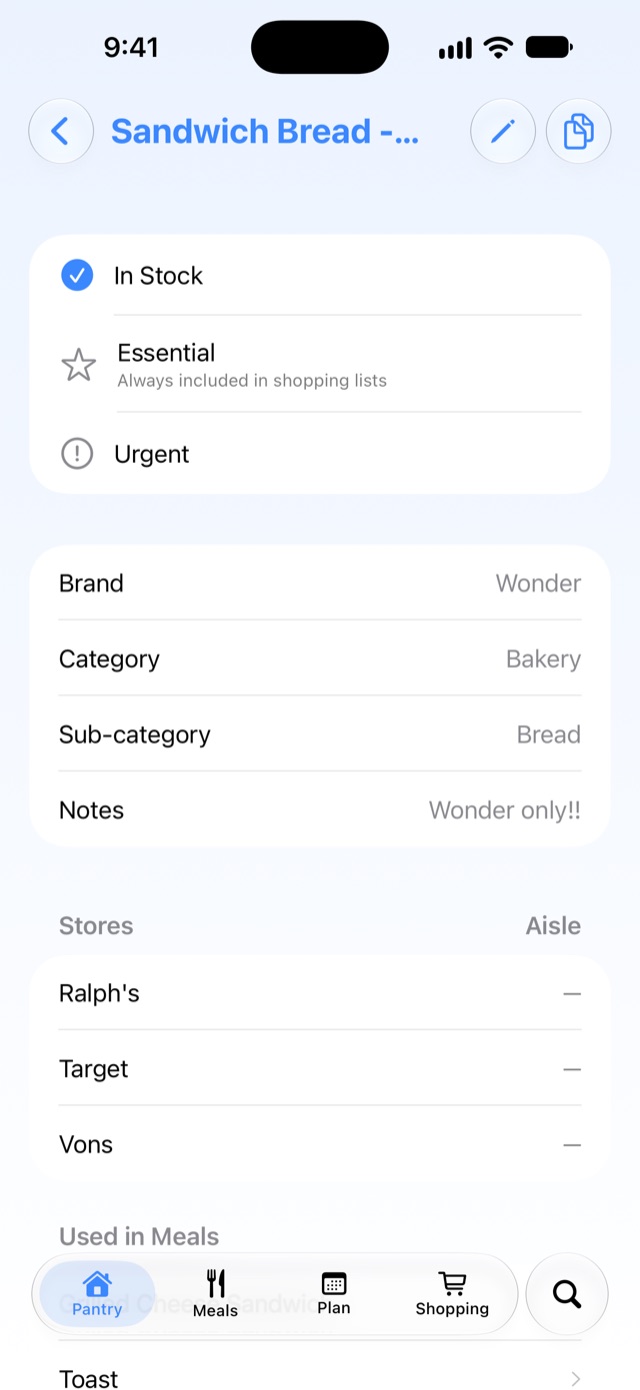
Tap the pencil to edit, or the copy icon to duplicate. While someone in your household is editing an item, others see it greyed out until they're done.
Making a shopping list from the pantry
Tap + → New Shopping List to turn what you're looking at into a list. It uses everything out of stock that matches your current filters, plus your essentials. With one store selected, the list is for that store; otherwise you pick a store. See Shopping Lists for the rest.
Selecting several items
Tap ⋯ → Select Multiple, then tap items. The cart button sorts your selection by store and lets you move anything between stores before making the lists. Tap Done to stop selecting.
Filtering and sorting the pantry
The buttons along the top are Store, Category, Meal, Plan and More, then Sort.
- Meal shows the ingredients of the meals you pick.
- Plan shows the ingredients of meals on your plan for Today, Tomorrow, This Week, or whatever days you've selected on the Plan tab.
- More has Tags and Essentials.
- Sort sorts by category (the default), date created, date modified or date purchased. Set Category Order… lets you drag categories into the order you like, and each category's sub-categories too. That order is kept for you even if you sign out.
Changing all your items at once
- ⋯ → Set All Stock… marks every item you can currently see in stock, or out of stock. Filter first to narrow it down.
- ⋯ → Manage Stores… works on stores across your whole pantry. Copy, Move, Rename or Delete a store, or Add a store to every item you can see. It tells you exactly what will change before you tap Continue.
Overdue items
If you'd like a nudge about things you buy regularly, set Settings → Defaults → Flag Items Not Purchased In… to a number of days, weeks or months. Items you haven't bought in that time get an hourglass and an orange name. Items you've never bought aren't flagged. Set it to 0 to turn it off.