 Empty Basket
Meals
Keeping the meals you cook, scanning recipe cards, and shopping for a meal.
What a meal is
A meal is the pantry items it needs. Add a recipe, instructions, a rating or a type if you want them, or leave them off. All Empty Basket needs to know is what to buy.
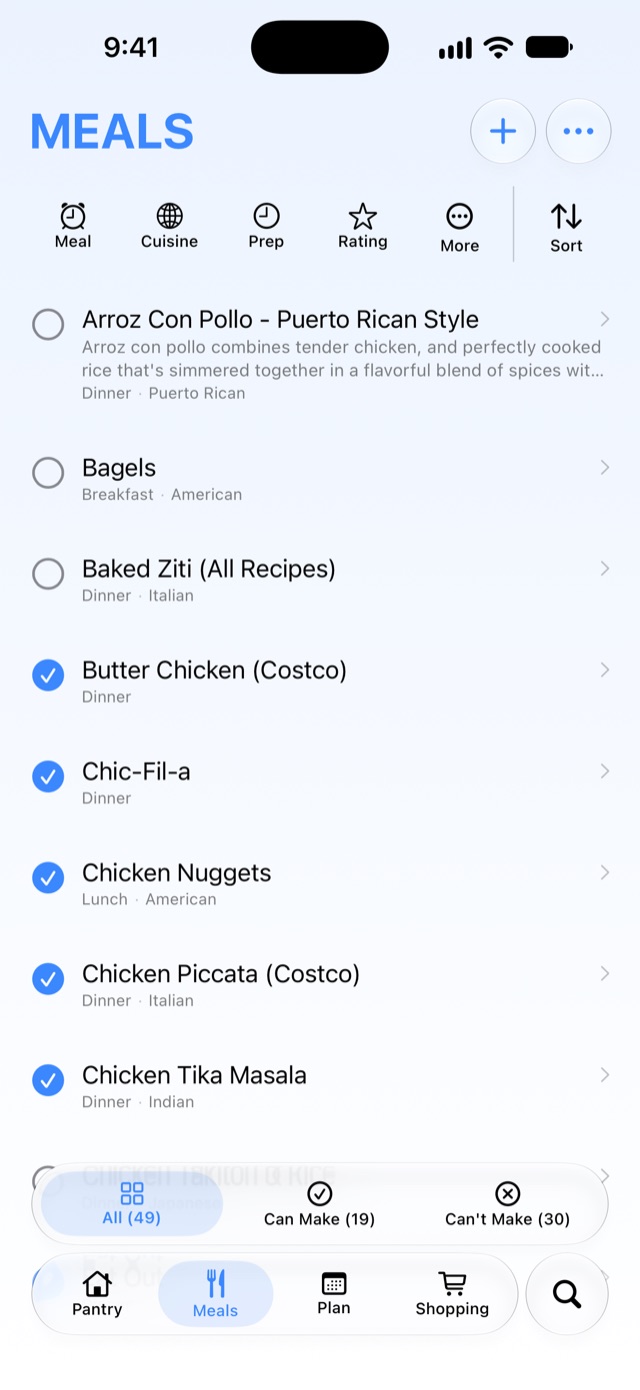
The circle next to each meal shows whether you can make it right now: filled means every ingredient linked to your pantry is in stock. The tabs at the bottom show All, Can Make and Can't Make.
Adding a meal
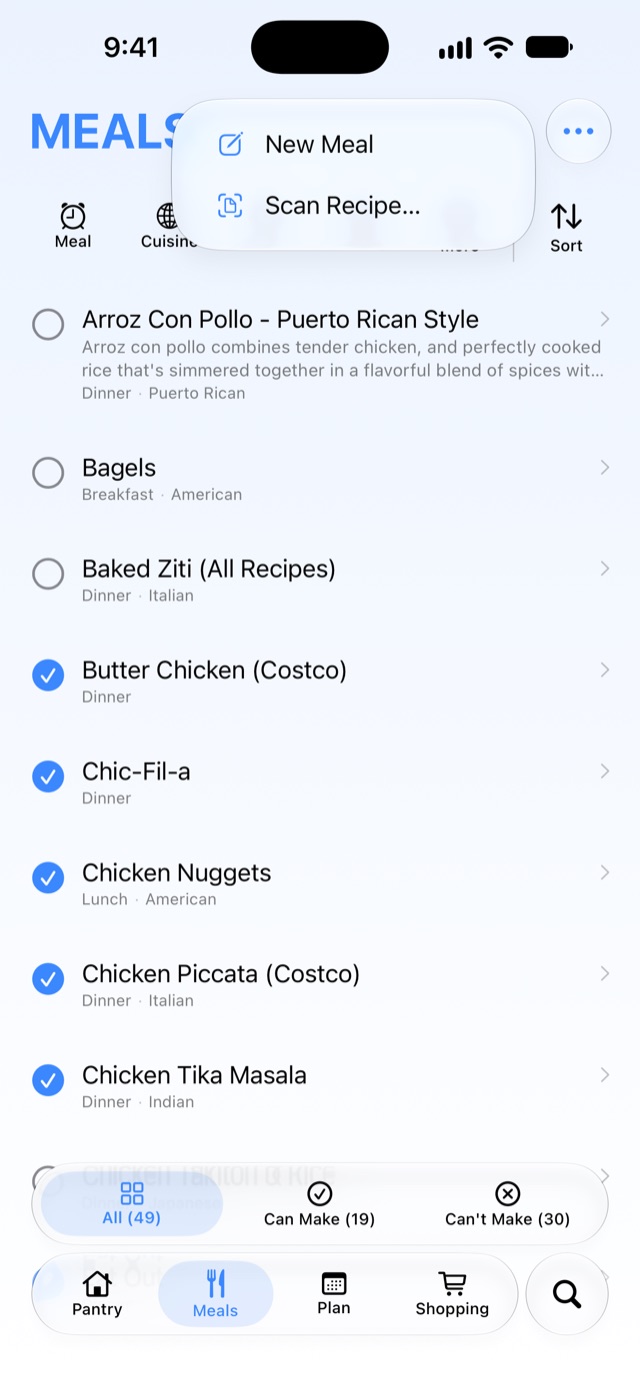
Tap + → New Meal. Only Name is required. Optional fields:
- Short Description
- Meal Type: Breakfast, Lunch, Dinner, Side or Snack
- Prep Time: Quick, Medium or Long
- Servings
- Rating: tap a star; tap it again to clear it
- Cuisine Tags, such as Italian or Vegetarian
- Recipe URL, Instructions and Notes
Ingredients
Tap Add Ingredient and pick items from your pantry. Then, for each ingredient:
- Fill in an Amount ("2 cups") and a Prep note ("chopped").
- Drag the handle to reorder.
- Tap the red minus to remove it.
The + in the ingredient picker also offers:
- Freeform Ingredient: something that isn't in your pantry.
- Add Label: a heading inside the list, such as "For the sauce:".
- Add Divider: a line between groups.
Only ingredients linked to a pantry item count toward Can Make and shopping lists. To link a freeform ingredient, tap its link icon and choose the pantry item. A linked ingredient's menu has Change Link… and Unlink.
Nothing is saved until you tap Save.
Scanning a recipe
Tap + → Scan Recipe…, then Take Photo of a recipe card or page, or Choose from Library (up to four images, such as screenshots). Empty Basket reads the text on your iPhone; the photos are never uploaded or kept. It fills in a new meal: the name, servings, ingredients linked to your pantry where it can, section headings, and the steps.
Check the result and fix anything it got wrong before you tap Save. Flat, well-lit pages read best. Results are better on iPhones with Apple Intelligence.
If the scan can't make out a recipe, try Try Another Photo, or Use Text Anyway to put everything it read into Instructions.
A meal's page
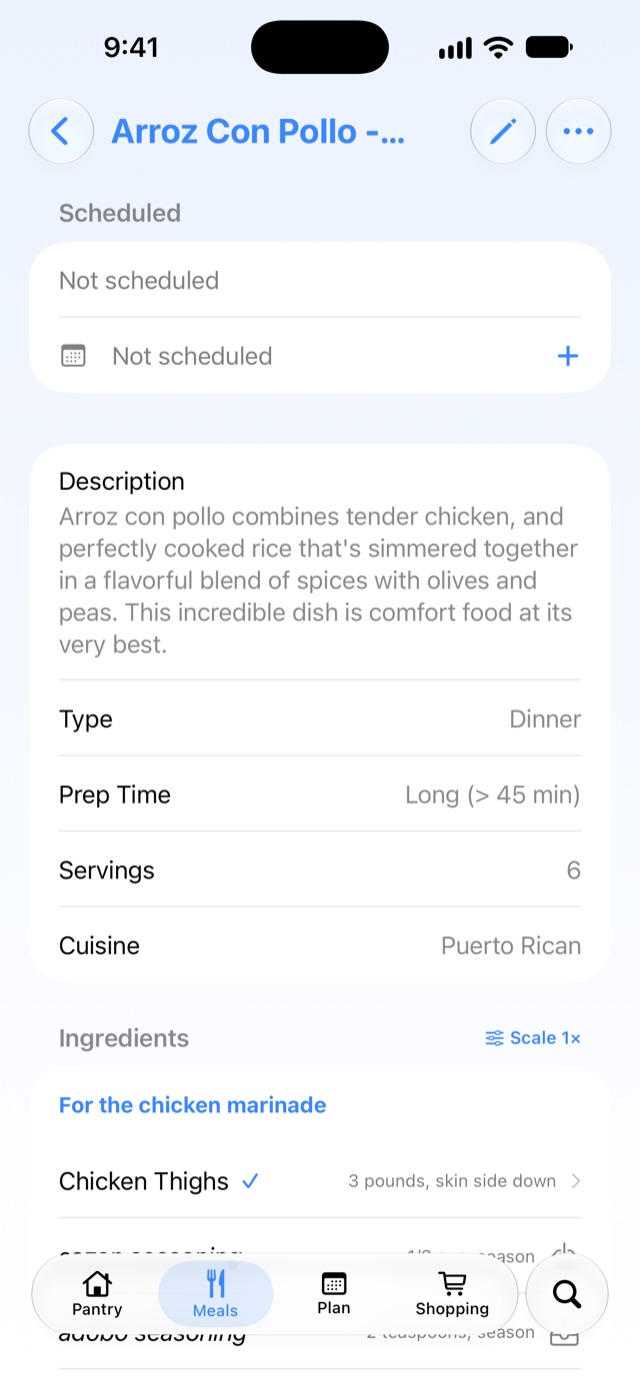
Tap a meal to see it:
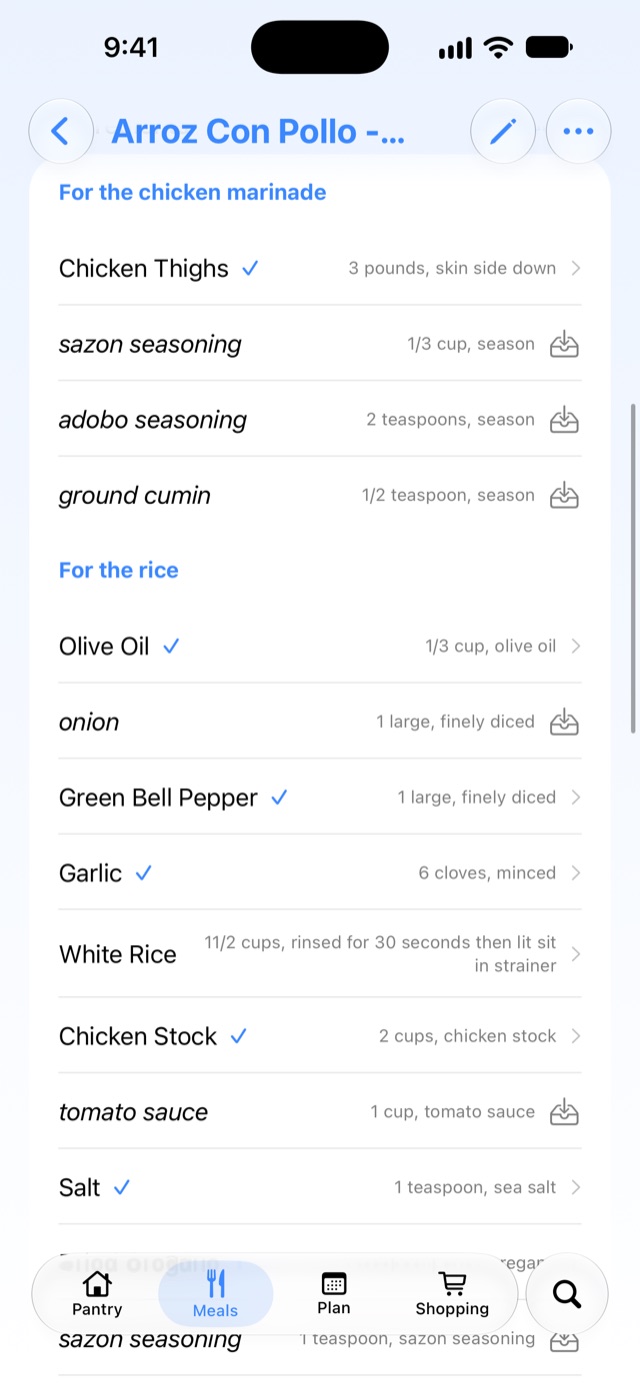
- Ingredients, with a ✓ for what's in stock. Tap an ingredient to open its pantry item.
- Scale, in the Ingredients heading: half, double, triple and so on, or a custom amount. It changes the amounts you see and the servings, and doesn't change the recipe.
- Scheduled: the dates the meal is planned for, coming up or past. Change a date or its meal type here, or Add another date.
- ⋯ has Share… (a recipe card as PDF or HTML), Duplicate, Archive and Delete.
Wanting to make something
Press and hold a meal and tap Mark Wanted to tell your household you'd like it soon. The thumbs-up count shows how many of you want it. Wants clear when the meal goes on a shopping list.
Scheduling from the meal list
Press and hold a meal for Schedule Meal (pick a day) and Unschedule Meal. For a week at a glance, use the Plan tab.
Shopping for meals
Press and hold a meal and tap Add to Shopping List. For several meals, use ⋯ → Select Multiple, then the cart button. Empty Basket collects the out-of-stock linked ingredients and sorts them by store. You can move anything to another store, or add to a list that's already open, before the lists are made. Amounts from the recipe show on the list as a reminder.
Archiving
Archive a meal you've stopped making. It drops out of the list, but search still finds it. Archiving clears its future dates on the plan and keeps its past ones. Turn on More → Show Archived to see only archived meals.
Filtering and sorting meals
Filter by Meal type, Cuisine, Prep and Rating. More has Show Scheduled (only meals with an upcoming date) and Show Archived.
Sort sorts alphabetically, or by type, cuisine, prep time, rating, last made, or Scheduled. Scheduled lists your meals day by day, with today first.
To delete a meal, swipe left and tap Delete. Swiping deletes it without asking; deleting from the meal's page asks first.