 Empty Basket
The Plan
Putting meals on a calendar and shopping for exactly those days.
Three views
The Plan tab shows the meals you've scheduled. The tabs at the bottom switch between:
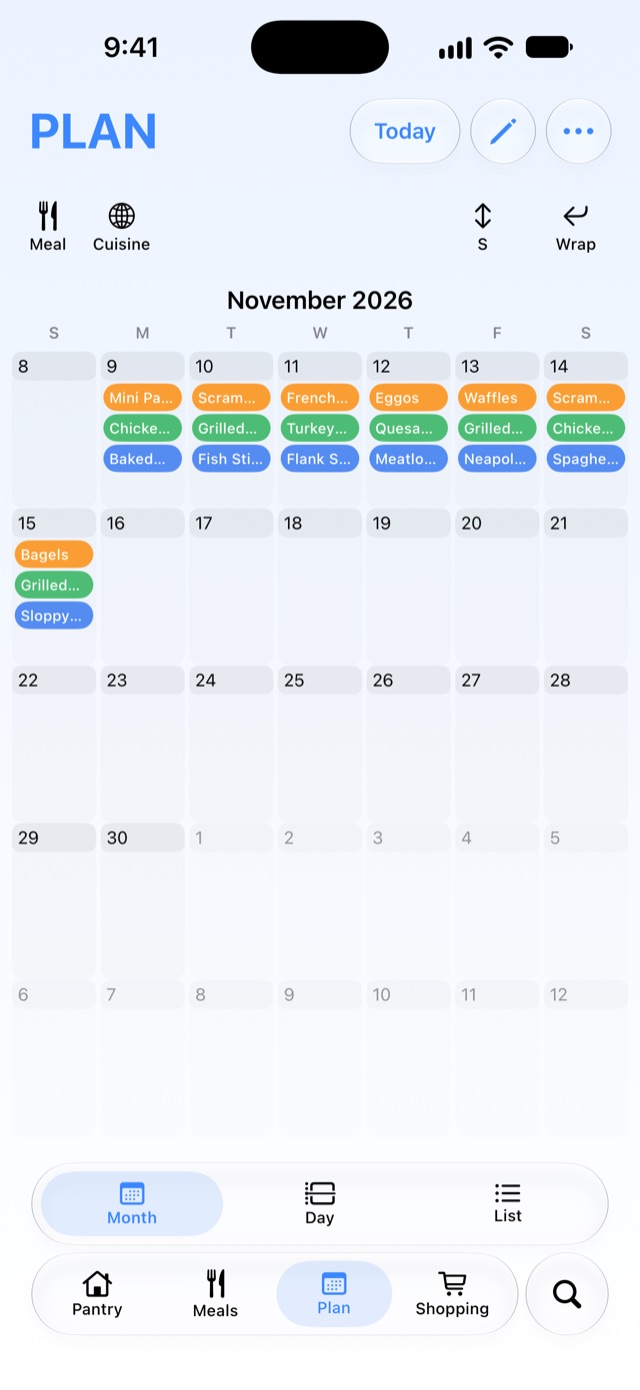
- Month: weeks scroll by continuously, with each meal as a colored chip.
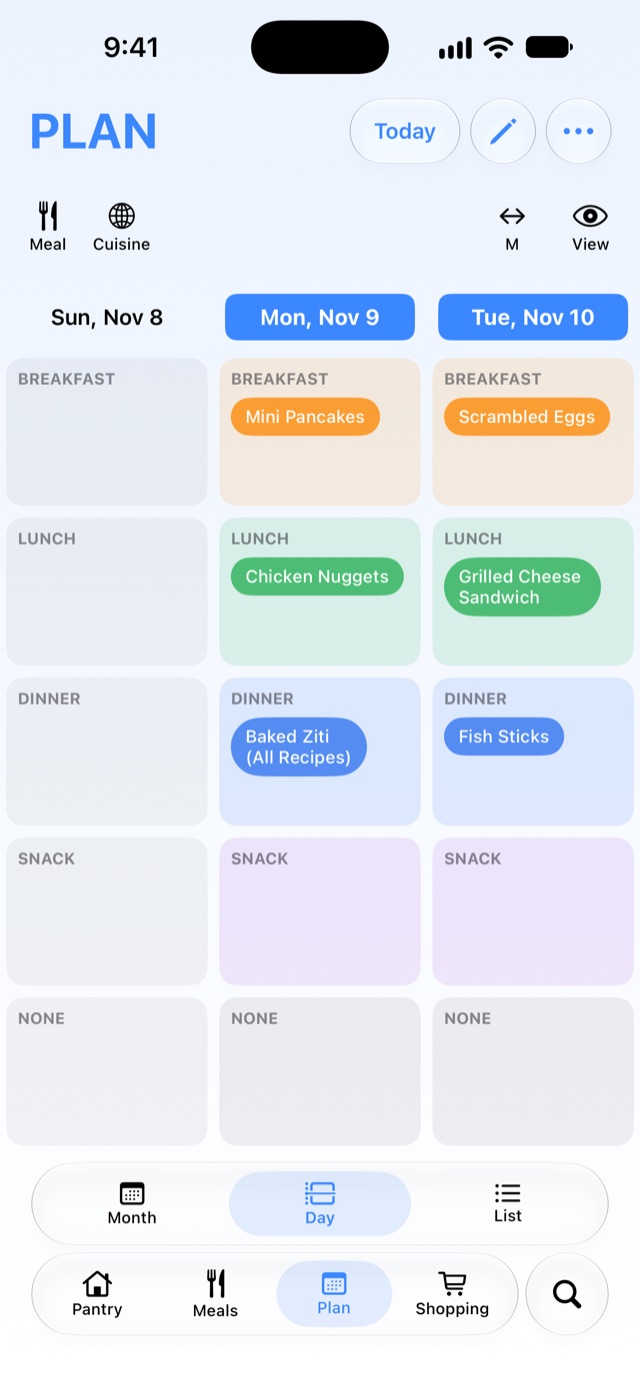
- Day: one day at a time, split into Breakfast, Lunch, Dinner, Snack and None. Swipe left and right to move between days.
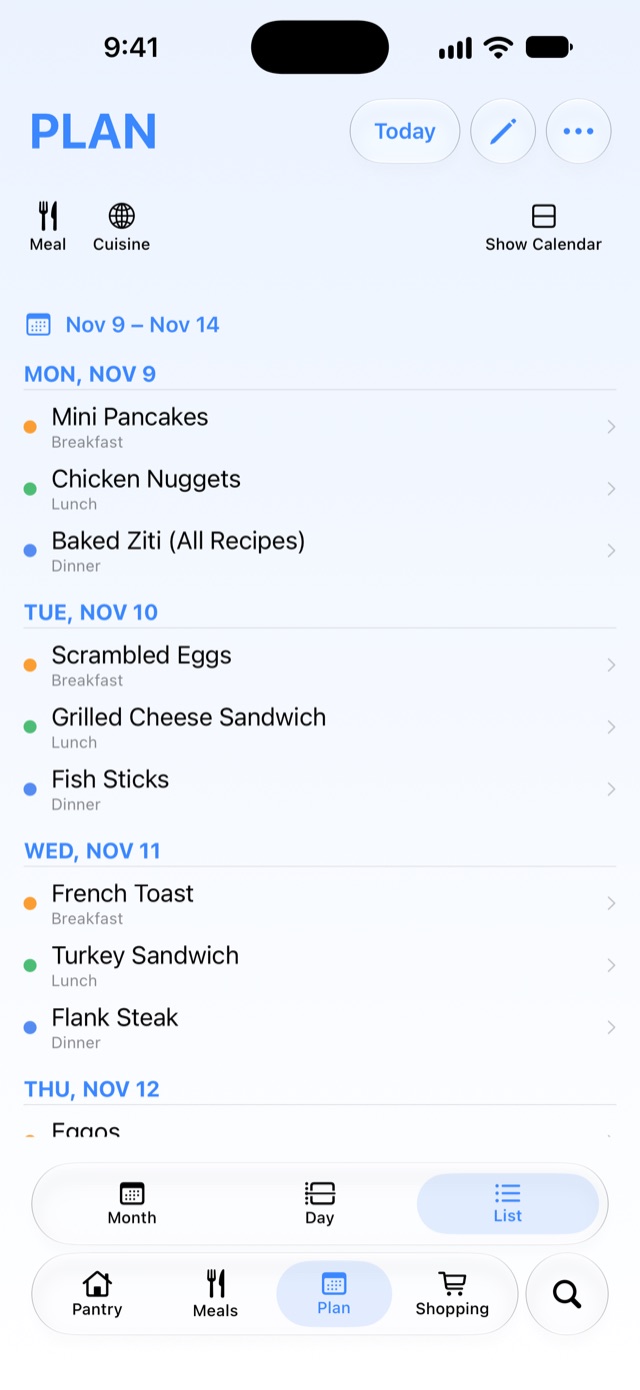
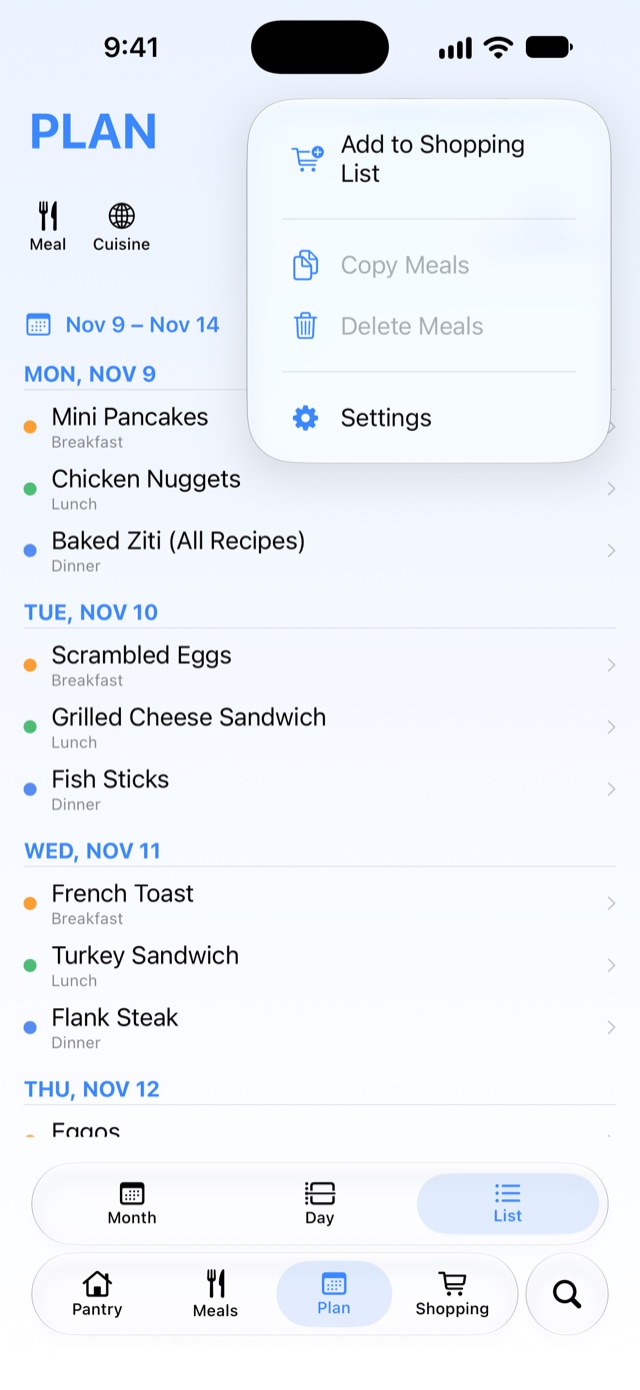
- List: the selected days as a list.
Today brings you back to today.
Selecting days
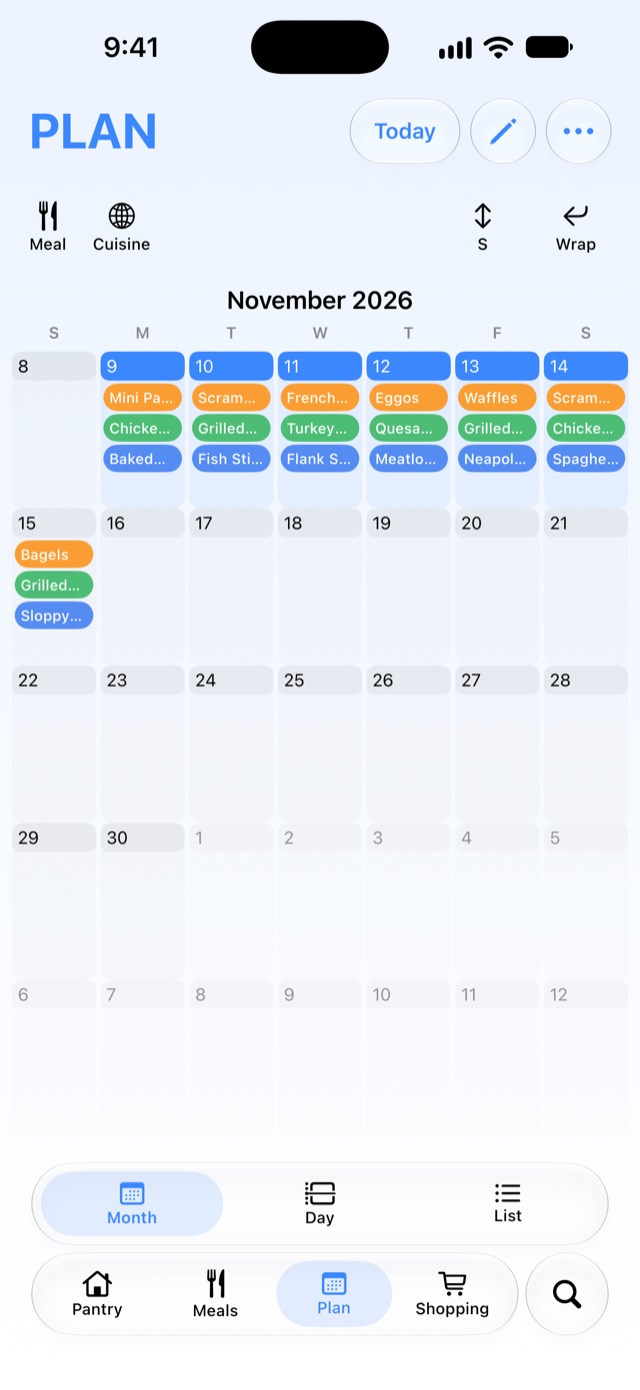
Tap a day to select it. To select a stretch of days, tap the first one, then press and hold the last. The selection carries over between the three views. It's also what Add to Shopping List and the pantry's Plan filter use.
Planning: edit, then publish
The plan is read-only until you tap the pencil. Then you can:
- Add a meal: tap + and pick one. In Month view, Show Menu opens your meals along the bottom; drag one onto a day.
- Move a meal: drag it to another day. In Day view, drag it to another meal type.
- Copy a meal: drag it onto a day's heading.
- Delete a meal: drag it onto the trash, which appears where the tab bar was.
- Press and hold a meal for Duplicate and Delete.
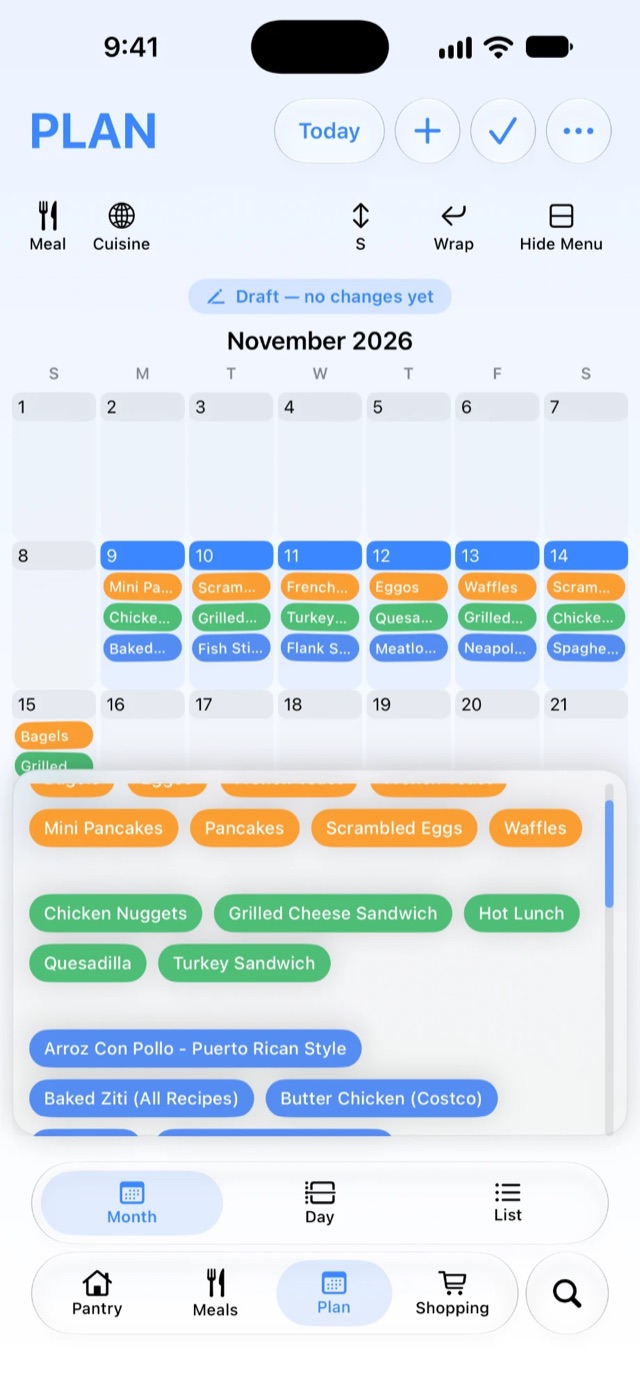
Your changes are a draft until you publish them. Drafts show with a dashed outline, and removed meals are struck through. The Draft button shows how many changes you've made. Tap it, or the ✓, to Publish Changes or Discard Changes.
Only one person in a household can edit the plan at a time; anyone else sees who's editing. Everyone sees your draft as you make it, but notifications, the evening summary and the published calendar wait until you publish. A draft survives closing the app.
Past days can't be changed. The plan keeps about six months of history, so you can see what you made.
Copying a week
In edit mode, select a week and tap ⋯ → Copy Meals. Then select the first day of the week you want and tap ⋯ → Paste Meals. The meals keep their spacing, and past days are skipped. What you copied is forgotten when the app closes.
⋯ → Delete Meals clears the selected days, after asking.
Shopping for the plan
Select some days and tap ⋯ → Add to Shopping List. Empty Basket collects the out-of-stock ingredients of the meals in those days and sorts them by store, the same way as from the Meals tab. Draft changes that aren't published yet aren't included.
To see what's needed before making a list, use the pantry's Plan filter.
Your other calendars
If your household's owner has subscribed to a calendar (school events, a shared family calendar), its events appear above the meals in Day view. Use the View menu (the eye) to choose which calendars and which meal types to show on this iPhone.
Seeing more or less
- Month: the size button changes how tall each day is, and Wrap lets long names use two lines.
- Day: the size button changes how wide each day is.
- List: Show Calendar adds a small calendar with dots on planned days.