 Empty Basket
Shopping Lists
Lists for one store, in the order you walk it, that check off as you go.
Making a list
On the Shopping tab, tap +, then choose:
- A store: everything out of stock that's sold there, plus your essentials for that store. The number next to each store is how many items are out of stock.
- All Stores: everything out of stock, wherever it's sold.
- Empty Store: a blank list you fill in yourself. Use it for a one-off trip, or to record a trip you've already made.
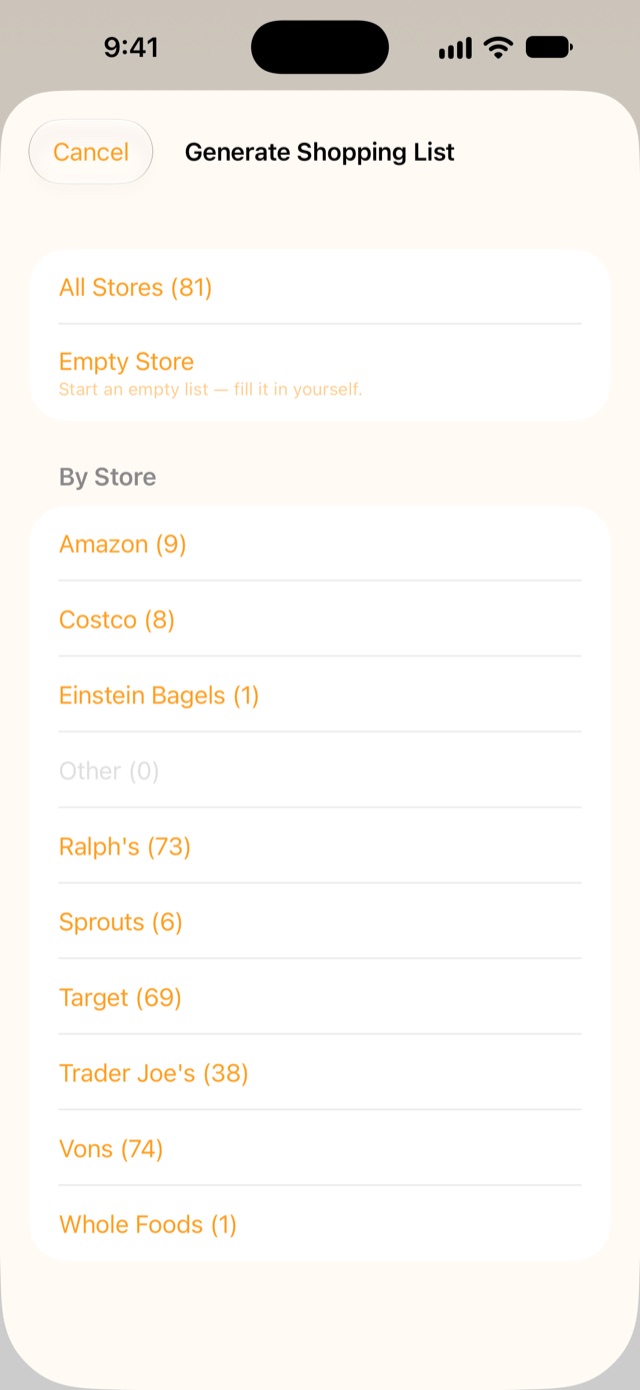
If you've already made a list for that store today, Empty Basket asks before making another.
You can also make lists from the pantry, from meals, and from the plan. Each of those pages explains how.
While you shop
Lists are sorted by category, in the order you set. Tap the circle next to an item when it's in the cart. It's crossed off, and with Sync Pantry and Shopping Lists on (it is unless you change it), the pantry item is marked in stock. Uncheck it and it goes back to out of stock.
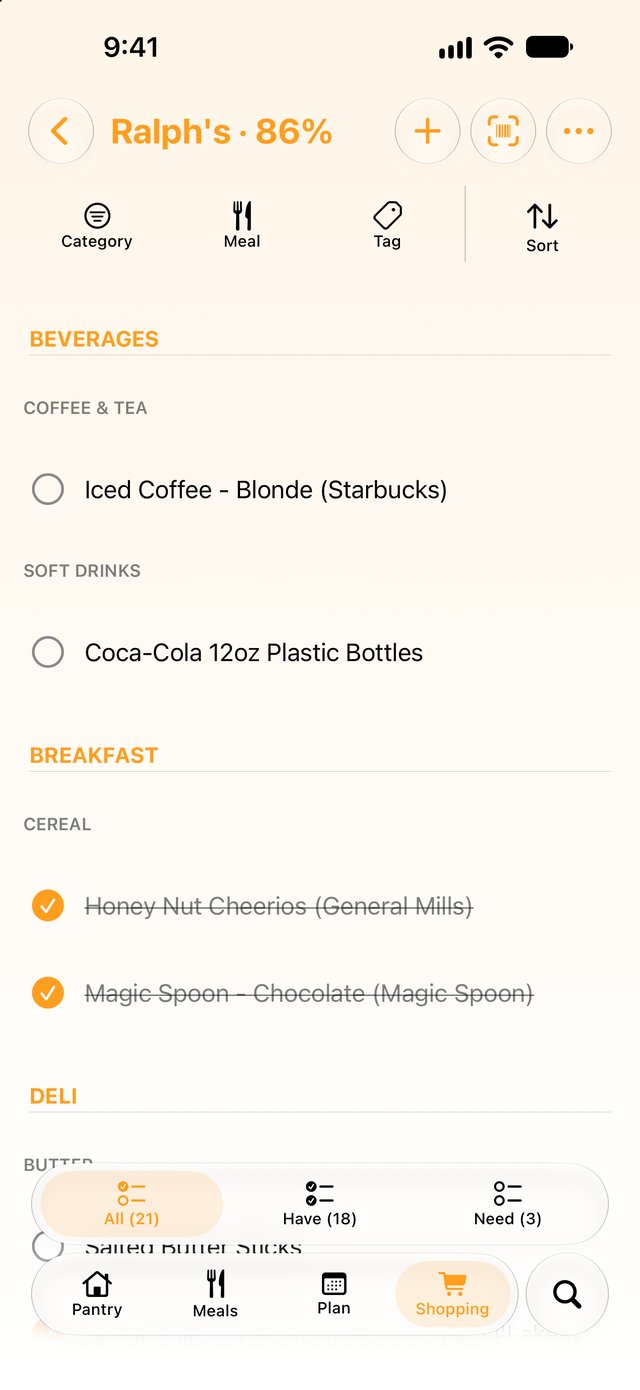
The tabs at the bottom show All, Have (in the cart) and Need (still to get). The title shows how far along you are. The first time a list is finished, there's a small celebration.
If someone at home adds to the list while you're in the store, it appears as they add it.
When they're out of it
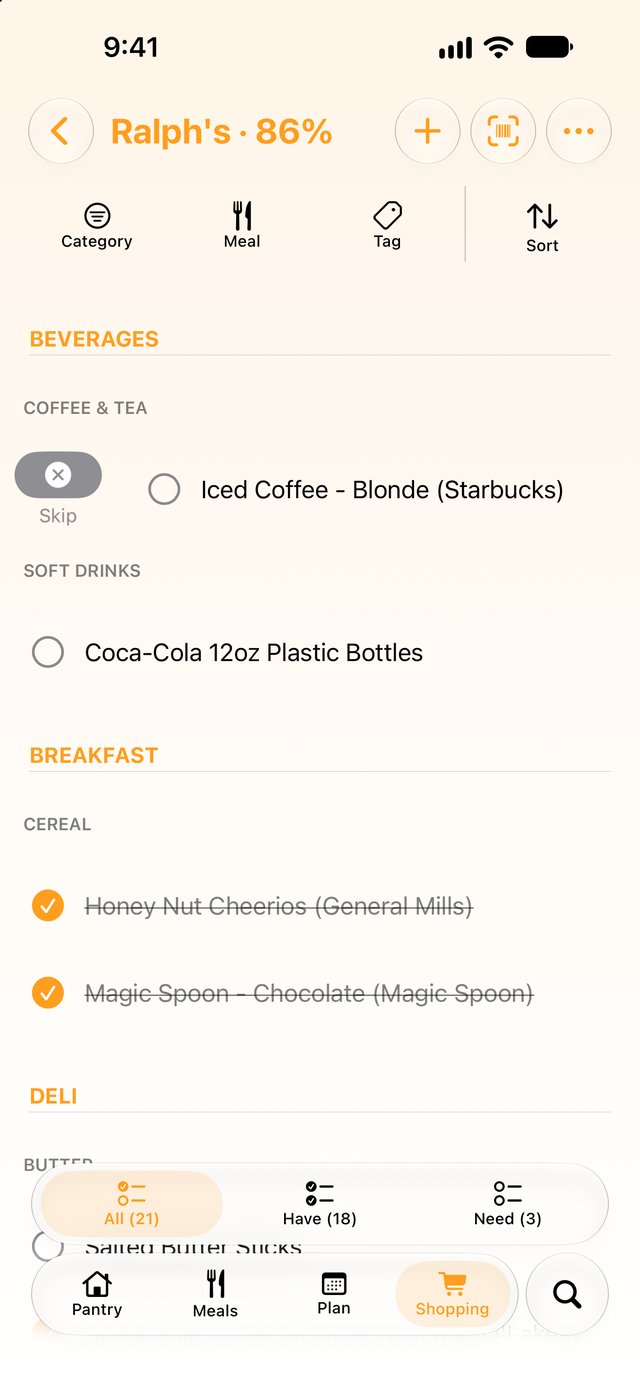
Swipe right on an item and tap Skip for anything you didn't buy, because the store was out or you changed your mind. You can add a short note ("out of stock, try Costco"). Skipped items are dimmed, count as done, and stay out of stock in your pantry. Swipe right again for Add Back.
To finish a trip with things left over, tap ⋯ → Close List. Anything not checked off is marked skipped, and the list counts as complete.
Adding to a list
Tap + inside a list. For a single store, you can switch between that store's items and All your items. Tap items to collect them in Selected, then tap Done to add them all.
From the same + menu:
- New Pantry Item creates a pantry item and adds it to the list.
- One-Off Item adds something that isn't in your pantry, like a birthday cake. One-off items are in italics. Tap the tray icon or Add to Pantry if you'd like to keep one.
Scanning at the store
Tap the Scan button (the barcode, next to +) inside a list and scan things as they go in the cart. It works like scanning in the pantry, but the choices are about this list:
- On the list: Check Off (or Uncheck if it's already checked off).
- In your pantry but not on the list: Add to This List, or Add & Check Off if it's already in your cart.
- Not in your pantry yet: the item form opens filled in. Saving adds it to your pantry and to this list, or tap Add & Check Off to tick it straight away.
If a scan looks like something you already have, it asks Which pantry item is this? first, just like in the pantry. Once a product's barcode is linked, every later scan finds it instantly.
Editing an item on a list
Tap an item to change its details for this trip. Aisle / Location also updates the pantry item, so the aisle is right next time. Shopping Note ("only if it's on sale") shows on the list in place of the pantry note.
To take an item off the list, swipe left and tap Remove. A full swipe removes it straight away.
Sorting a list
The buttons inside a list filter by Category, Meal or Tag. Sort sorts by category, by date added, by status (Have / Need / Skipped), or by aisle.
Set Category Order… changes the order for this list. The next list for the same store starts with that order, so after a trip or two your lists match the store's layout.
Sharing a list
Tap ⋯ → Share… to send the list as a PDF, or as an HTML page someone can tick off in any web browser. No app required.
Past lists
The Shopping tab keeps every list, with the store, who shopped, when, and how complete it is. The tabs show All, Complete or Incomplete lists. Filter by store or shopper, or use Last Only to see just the newest list for each store.
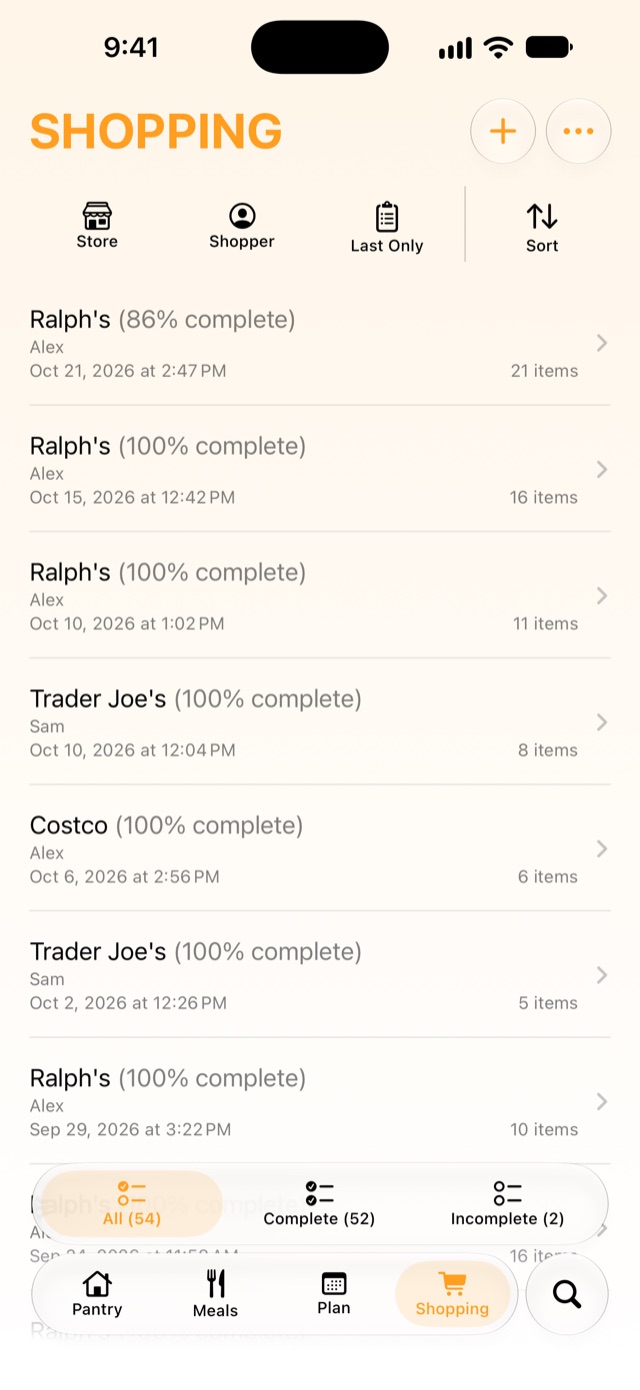
- Swipe right → Edit… to change a list's title, shopper or date.
- Swipe left → Delete to delete it. A full swipe deletes it without asking.
Every purchase also shows up in each pantry item's Purchase History.